
How to Navigate the Blender Viewport
The Blender viewport is the large three-dimensional window in the center of the application. Every modeling action that a 57 Studios™ contributor performs for an Unturned™ mod takes place inside this viewport. Moving the viewpoint with confidence is the foundation skill on which every other modeling skill depends. This reference explains the mouse, numpad, and touch-input methods for orbiting, panning, and zooming the viewport.
A new modder who skips viewport navigation often spends the first several modeling sessions fighting the camera. Time spent learning the controls in this article pays off across every subsequent article in the 57 Studios documentation. The goal is for the modder to be able to look at any part of any object in the scene from any angle within a few seconds, without conscious thought about which key combination to press.
Prerequisites
Before beginning this article, the following must be true:
- Blender is installed and launches successfully. If Blender has not been installed, complete How to Install Blender first.
- A three-button mouse is connected. The middle button is the scroll wheel, which on most mice can be pressed in like a button.
- A keyboard with a numeric keypad is connected, or a keyboard with a row of number keys. Laptops without a numeric keypad can use the keymap option described in the Advanced considerations section.
- The Blender default keymap is active. If the keymap has been changed, reset it from Edit → Preferences → Keymap by clicking Restore.
- The default scene is loaded. If the default scene has been modified, choose File → New → General to restore it.
What you'll learn
By the end of this article, the reader will be able to:
- Orbit the viewport using the middle mouse button.
- Pan the viewport using Shift combined with the middle mouse button.
- Zoom the viewport using the scroll wheel.
- Switch to front, side, and top orthographic views using the numpad.
- Toggle between orthographic and perspective projection.
- Switch to the camera view.
- Choose an appropriate input device for long modeling sessions.
- Use the navigation gizmo as a mouse-only alternative to the numpad.
- Configure Blender for laptops that lack a dedicated numpad.
- Enter and exit Walk mode for navigating large environment scenes.
Background
The Blender viewport displays a three-dimensional scene from a movable viewpoint. The viewpoint is sometimes called the camera, but Blender separates the user's viewpoint from the scene's render camera. The viewpoint is the window through which the modder sees the scene. The render camera is a separate object that defines what appears in the final rendered image.
The viewport has three axes. The X axis runs left and right. The Y axis runs forward and backward. The Z axis runs up and down. Blender uses a Z-up coordinate system, which differs from Unity, which uses a Y-up coordinate system. This difference becomes important when exporting models and is covered in detail in the next article.
        Z (up)
        |
        |
        |
        +--------- X (right)
       /
      /
     /
    Y (forward, away from viewer)
Z-up versus Y-up
Blender treats Z as the vertical axis. Unity treats Y as the vertical axis. This single difference is the cause of more new-modder confusion than any other coordinate system question.
The viewport is also home to a number of overlays. The grid is the most prominent overlay. The grid runs along the X and Y axes at the world origin. The colored axis lines that pass through the origin show the X axis in red and the Y axis in green. The Z axis, which is vertical, is not drawn by default because it would clutter the viewport. Each overlay can be toggled in the Overlays dropdown in the top of the viewport.
A short tour of the viewport
Before diving into the controls, the modder should know what to look at. The default Blender layout contains the following five regions, arranged around the central viewport.
| Region | Location | Purpose |
|---|---|---|
| Viewport | Center | The three-dimensional editing area |
| Toolbar | Left edge of viewport | Modeling tools, accessible by pressing T to toggle |
| Sidebar | Right edge of viewport | Item, tool, view, and gizmo settings, accessible by pressing N to toggle |
| Outliner | Top right of window | Tree view of objects in the scene |
| Properties panel | Bottom right of window | Render, output, scene, world, and object properties |
The viewport itself is the largest region and consumes the majority of screen real estate. The other regions are smaller but contain important controls that a modder will eventually use. For the purposes of this article, the focus is on the viewport itself.
Header bar above the viewport
The thin horizontal bar above the viewport is the viewport header. The header contains the editor type selector, the view menu, the select menu, the add menu, the object menu, and the mode dropdown. The header is where most viewport-level operations live. Familiarity with the header will accelerate the learning of every subsequent modeling task.
Primary controls
Orbiting with the middle mouse button
Press and hold the middle mouse button, which is the scroll wheel pressed in like a button. While holding it, move the mouse. The viewpoint orbits around a pivot point in the center of the scene. Release the middle mouse button to stop orbiting.
The pivot point is, by default, the center of the world. To change the pivot point to the currently selected object, press the period key on the numpad. The viewpoint will recenter around that object.
Pro tip
If the middle mouse button is hard to press, the scroll wheel may be too stiff. Most mice have a smoother middle-click after a few weeks of regular use, but a dedicated modeling mouse with a click wheel designed for frequent pressing is a worthwhile investment.
Orbit speed
The default orbit speed is calibrated for a typical 1920x1080 display. On a higher-resolution display, such as a 4K monitor, the orbit feels faster because the same physical mouse movement spans more pixels. The orbit speed can be tuned in Edit → Preferences → Navigation. Lower values produce a slower, more controlled orbit; higher values produce a faster orbit for surveying large scenes quickly.
Panning with Shift and the middle mouse button
Hold the Shift key, then press and hold the middle mouse button. Move the mouse to pan the viewport. Panning slides the viewpoint left, right, up, or down without rotating it. This motion is useful when the camera needs to follow an object that is moving across the scene, or when zooming into a specific area without changing the angle.
Panning is the most common alternative to orbiting when working on a flat surface, such as the floor of an indoor environment scene. Orbiting around a flat surface produces awkward angles, while panning slides smoothly across the floor without changing the angle.
Zooming with the scroll wheel
Roll the scroll wheel forward to zoom in. Roll the scroll wheel backward to zoom out. The zoom centers on the cursor position by default in recent Blender releases. To zoom toward the center of the viewport, hold Control while rolling the scroll wheel.
For finer zoom control, hold Control and press and hold the middle mouse button while moving the mouse forward or backward. This method allows continuous zoom adjustments instead of the stepped zoom of the scroll wheel.
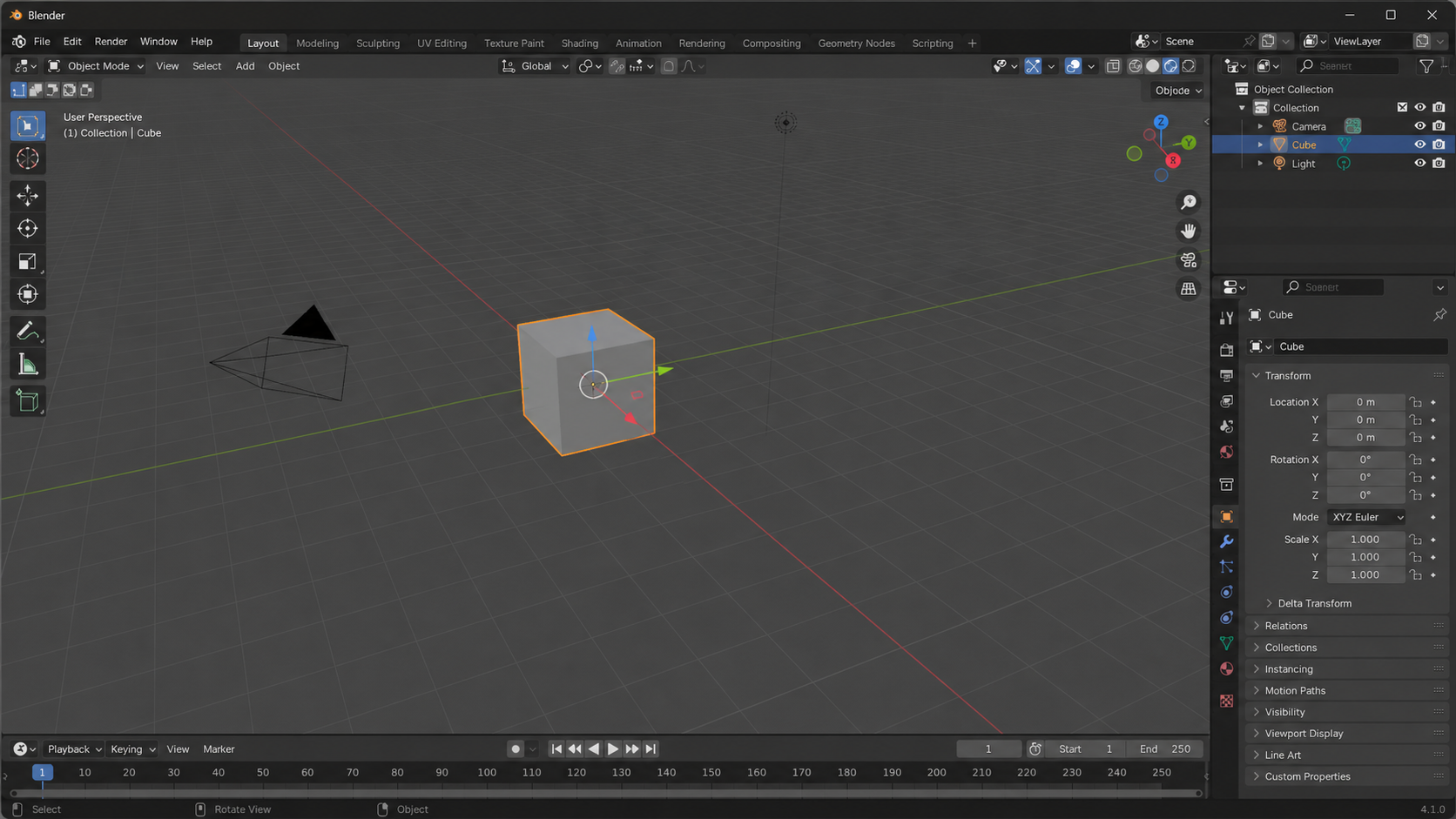
Cursor-centered zoom
Cursor-centered zoom is convenient when the modder wants to inspect a specific feature on a model. Move the mouse over the feature, then roll the wheel forward. The viewport zooms toward the feature without further input. This is faster than orbiting around the model to find the feature, then zooming in.
Numpad shortcuts
The numpad provides instant access to standard orthographic views. These shortcuts are the fastest way to align the viewpoint for precise modeling work.
| Numpad key | Action |
|---|---|
| 1 | Front view (looking along the Y axis) |
| Ctrl + 1 | Back view |
| 3 | Right side view (looking along the X axis) |
| Ctrl + 3 | Left side view |
| 7 | Top view (looking down the Z axis) |
| Ctrl + 7 | Bottom view |
| 5 | Toggle between orthographic and perspective projection |
| 0 | Switch to the render camera's view |
| . (period) | Frame the selected object |
| / (slash) | Toggle local view, hiding everything except the selected object |
| 2, 4, 6, 8 | Orbit the view in 15-degree increments |
| + and - | Zoom in and out in steps |
| 9 | Rotate the view 180 degrees around the vertical axis |
Orthographic versus perspective
Modeling work should be performed in orthographic projection for any view that requires precise alignment. Perspective projection distorts distances and makes it difficult to verify that two vertices line up. Press 5 on the numpad to toggle.
The 9 key
Numpad 9 is one of the most useful shortcuts that modders often overlook. It rotates the viewpoint 180 degrees around the vertical axis. From a Front view, pressing 9 produces a Back view. From a Top view, pressing 9 inverts the orientation. The 9 key is the fastest way to look at the opposite side of a model without orbiting manually.
Camera view
Pressing 0 on the numpad switches the viewport to show what the render camera sees. A black border appears around the visible area. Pressing 0 a second time returns to the normal user viewpoint. The camera view is useful for framing a final render but is not generally used during modeling.
To position the render camera to match the current user viewpoint, choose View → Align View → Align Active Camera to View, or press Ctrl + Alt + Numpad 0. This snaps the camera to the position from which the modder is currently viewing the scene, which is a fast way to compose a render without manually dragging the camera object.
Frame and local view
Numpad period frames the selected object, centering it in the viewport at a comfortable zoom level. Numpad slash toggles local view, which temporarily hides every object in the scene except the selected one. Local view is invaluable when working on a single object that is surrounded by other objects in a complex scene. The other objects are not deleted; they reappear when local view is toggled off.
Comparison across software
Modders coming from Maya, 3ds Max, Unity, or other three-dimensional software bring muscle memory from those applications. The following table compares the orbit, pan, and zoom controls across the most common applications.
| Action | Blender | Maya | 3ds Max | Unity (Scene view) |
|---|---|---|---|---|
| Orbit | Middle mouse button | Alt + left mouse button | Alt + middle mouse button | Alt + left mouse button |
| Pan | Shift + middle mouse button | Alt + middle mouse button | Middle mouse button | Middle mouse button |
| Zoom | Scroll wheel | Alt + right mouse button | Scroll wheel | Scroll wheel |
| Focus on selection | Numpad period | F | Z | F |
| Front view | Numpad 1 | Space, then click Front | Front toolbar button | No standard shortcut |
| Top view | Numpad 7 | Space, then click Top | Top toolbar button | No standard shortcut |
| Toggle perspective | Numpad 5 | Numpad 5 | P | Right-click gizmo |
| Camera view | Numpad 0 | Space, then click Camera | C | Game view tab |
| Walk mode | Shift + ` | Alt + drag | Alt + drag | Right-click + WASD |
| Frame all | Home | A then F | Ctrl + Shift + Z | Press F twice |
Blender users who also work in Maya can enable the Maya-style "Industry Compatible" keymap from the Preferences window, but the 57 Studios documentation assumes the default Blender keymap throughout.
Decision flowchart — selecting an input device
Touch-input alternatives
Blender supports touch input on Windows tablets and convertible laptops. The touch gestures are:
- One-finger drag — Acts as a left-click drag, which selects or moves objects.
- Two-finger drag — Orbits the viewport, equivalent to the middle mouse button.
- Two-finger pinch — Zooms the viewport, equivalent to the scroll wheel.
- Three-finger drag — Pans the viewport, equivalent to Shift plus the middle mouse button.
Touch input is enabled by default. If the gestures do not work, open Edit → Preferences → Input and confirm that "Touch Input" is checked.
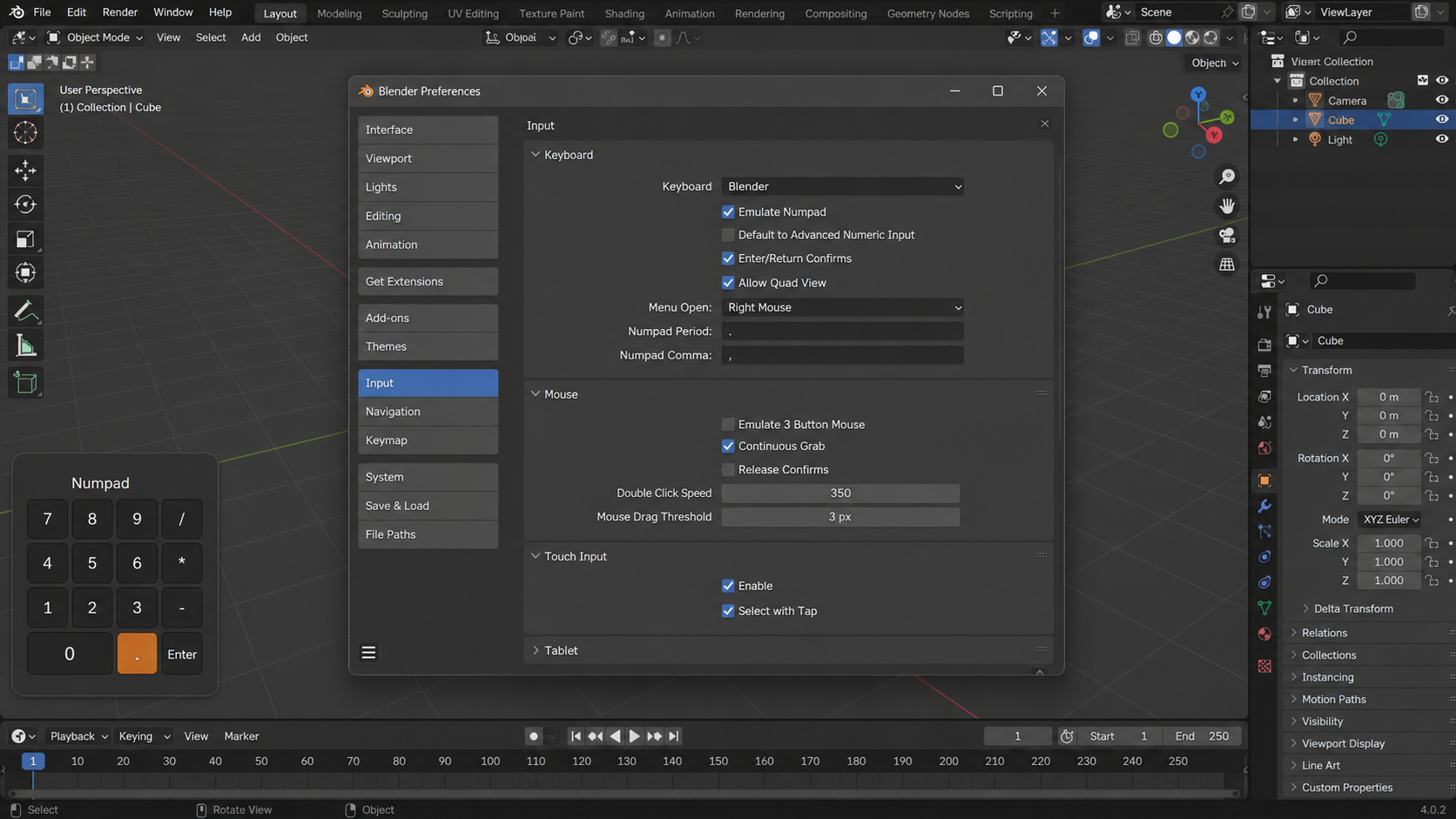
Laptops without a numpad
Open Edit → Preferences → Input and check the "Emulate Numpad" option. With this setting enabled, the row of number keys above the letter keys behaves like the numpad keys. The default numpad behavior of those number keys, which is to switch between layer collections, is then accessed by holding Alt.
The navigation gizmo
In the upper right corner of the viewport is a small set of icons known as the navigation gizmo. The gizmo is a mouse-only alternative to the numpad shortcuts. It consists of:
- A colored sphere with axis labels for X, -X, Y, -Y, Z, and -Z. Click any axis label to snap to that orthographic view.
- A hand icon for panning. Click and drag the hand icon to pan the viewport.
- A magnifying glass icon for zooming. Click and drag the magnifying glass to zoom in and out.
- A grid-like icon for toggling orthographic versus perspective projection.
- A camera icon for toggling the render camera view.
The navigation gizmo is useful for modders without a numpad and for modders who prefer mouse-only navigation. It is also useful when working with a graphics tablet, where the tablet's pen replaces the mouse and the gizmo's icons are easier to tap than a numpad key combination.
Advanced considerations
Walk and fly modes
For navigating large environments, Blender includes Walk mode and Fly mode. Press Shift + ` (the backtick key) to enter Walk mode. The viewport then behaves like a first-person camera in a video game, with WASD keys for movement and the mouse for looking. Press Escape or right-click to exit.
Walk mode is useful when modeling large environment pieces that span more than a few meters, such as a custom map for an Unturned server. The default walk speed can feel slow when surveying a large scene; the speed can be adjusted on the fly by scrolling the mouse wheel while in Walk mode.
Fly mode is a variation of Walk mode that does not enforce gravity. The viewpoint moves freely in three dimensions, which is useful for inspecting tall structures or moving above and below the terrain.
View navigation gizmo customization
The navigation gizmo can be enlarged or shrunk in Edit → Preferences → Viewport. Larger gizmos are easier to click but consume more viewport real estate. Modders with high-resolution displays often increase the gizmo size to keep it usable at the smaller default pixel ratio.
Custom orbit pivot
By default, Blender orbits around the center of the world. To orbit around the cursor instead, open Edit → Preferences → Navigation and change the "Orbit Around" setting to "Around Mouse Cursor." This setting matches the behavior of Maya and is preferred by many professional modelers.
A third orbit option, "Orbit Around Selection," uses the bounding box center of the selected object as the pivot. This is the most useful option for object-focused modeling work.
Trackpad support
On laptops with a precision trackpad, two-finger swipe pans the viewport and pinch zooms it. Holding Shift while two-finger swiping orbits the viewport. Trackpad navigation is usable for short tasks but is significantly slower than a dedicated three-button mouse for sustained modeling work.
Stereoscopic display support
Blender's viewport supports a stereoscopic display mode for users with anaglyph glasses, side-by-side displays, or virtual reality headsets. The setting is in the Properties panel under Output → Stereoscopy. Stereoscopic display is rare in Unturned modding workflows but is documented for completeness.
Quad view
The viewport can be split into four panels showing front, side, top, and perspective views simultaneously. Press Ctrl + Alt + Q to toggle quad view. Each panel responds to navigation shortcuts independently. Quad view is useful for verifying that a model aligns correctly in all three dimensions at once.
Posture and ergonomics
Modeling sessions can extend for several hours. A few small adjustments to posture and equipment make these sessions more sustainable.
| Recommendation | Reason |
|---|---|
| Place the keyboard so the numpad falls under the dominant hand | Numpad shortcuts are heavily used; reaching for them slows the workflow |
| Keep the mouse at the same height as the keyboard | Reduces wrist strain |
| Use a mouse with a clickable scroll wheel rather than a touch-sensitive scroll surface | Touch surfaces are less reliable for middle-click |
| Take a five-minute break every 45 minutes | Reduces eye strain and helps the modder spot errors that have crept in |
| Sit with the monitor at eye level | Reduces neck strain |
| Use a chair with adjustable height | Allows the modder to align eye level with the monitor |
The 57 Studios documentation does not enforce a specific ergonomic standard, but contributors have reported reduced wrist pain after adopting the recommendations above.
Distribution of preferred navigation methods
The following chart reflects the navigation methods reported by active 57 Studios contributors in an early-2026 survey.
The majority of contributors use a three-button mouse with a numpad-equipped keyboard, which matches the recommendation in the decision flowchart above. The remaining contributors use one of the alternative input methods documented in this article.
Practical exercises
The following short exercises help a new modder build muscle memory for the navigation shortcuts. Each exercise should take less than five minutes. Repeat each exercise daily for the first week of Blender use.
Exercise 1 — Orbit around the default cube
Open Blender, dismiss the splash screen, and confirm the default cube is visible. Press numpad period to frame the cube. Hold the middle mouse button and orbit the cube slowly. Try to keep the cube in the center of the viewport. After completing a full 360-degree orbit, press numpad 1, then numpad 3, then numpad 7 to snap to front, side, and top views.
Exercise 2 — Pan across the grid
From the top view, hold Shift and the middle mouse button and pan the viewport across the grid. Pan until the world origin is no longer visible. Press numpad period to frame the cube and return the origin to the viewport.
Exercise 3 — Zoom into a single face
From the front view, hover the mouse over the front face of the cube. Roll the scroll wheel forward to zoom in until the face fills the viewport. Press numpad period to zoom back out. Repeat for each face of the cube.
Exercise 4 — Enter and exit camera view
Press numpad 0 to switch to camera view. A black border appears. Press numpad 0 again to return to the user viewpoint. Repeat five times to internalize the toggle.
Exercise 5 — Walk mode
Press Shift + ` to enter Walk mode. Use the WASD keys to walk around the default cube. Press the Q and E keys to move down and up. Press Escape to exit Walk mode.
Exercise discipline
The exercises above are intentionally short. A new modder who completes all five exercises every day for one week typically reports a noticeable improvement in navigation speed. Skip the exercises and learning takes longer.
Common confusions and resolutions
The following table addresses the issues most commonly reported by new modders during their first viewport navigation session. Each row pairs a confusion with the resolution that 57 Studios contributors have validated.
| Confusion | Resolution |
|---|---|
| The view rolls when orbiting | The cursor moved off the viewport while the middle mouse button was held; press numpad 1, 3, or 7 to reset |
| Numpad period does not frame the object | No object is selected; click the object once before pressing numpad period |
| The cube is invisible | The viewport zoomed past the cube; press Home to frame the entire scene |
| The cube appears very small | The viewport is in orthographic mode at a wide zoom; scroll forward to zoom in |
| The numpad keys produce numbers in a text field | A text field has focus; click outside the text field, then retry |
| Walk mode does not respond to WASD | The Caps Lock key is enabled; turn it off |
| The viewport rotates instead of panning | The Shift key was released before the middle mouse button; hold Shift continuously while panning |
| The scroll wheel zooms in the wrong direction | The Invert Zoom checkbox in Preferences is checked; uncheck it |
A modder who encounters a confusion not listed above can search the Blender wiki or ask in the 57 Studios community channels.
FAQ
The middle mouse button does not orbit. What is wrong? Confirm that the mouse driver is not intercepting the middle click for a custom action such as scrolling or window switching. Open the mouse software, such as Logitech Options or Razer Synapse, and set the middle button to "Default" or "Middle Click."
The numpad keys do nothing. Confirm that Num Lock is on. The numpad keys produce different signals when Num Lock is off, and Blender does not recognize those alternate signals as viewport shortcuts.
The viewport jumps unexpectedly when zooming. Blender has a minimum zoom distance. When the viewpoint reaches that minimum, further zoom-in attempts cause a small jump. Press numpad period to frame the selected object, which resets the zoom distance.
Can the controls be remapped? Yes. Open Edit → Preferences → Keymap. Every viewport action can be remapped. The 57 Studios documentation assumes default keymaps throughout, so remapping is recommended only for advanced users.
Why does my view feel upside-down? The viewpoint has rolled. Press numpad 1, 3, or 7 to snap to a standard orthographic view and reset the roll.
Does Blender support left-handed mice? Yes. The mouse buttons can be reassigned through Windows settings rather than through Blender. The middle mouse button remains the scroll wheel regardless of left-handed or right-handed configuration.
Can I use a Wacom tablet instead of a mouse? Yes. The Wacom pen replaces the left mouse button. The middle mouse button is replaced by a pen button or by a configurable shortcut on the tablet. Tablet manufacturers ship driver software that maps tablet buttons to mouse buttons.
Does Walk mode support a gamepad? No. Walk mode supports keyboard and mouse only. Gamepad support is not built into Blender.
What is the difference between Walk mode and Fly mode? Walk mode enforces gravity and a maximum step height, simulating the experience of walking through the scene on foot. Fly mode does not enforce gravity, allowing the viewpoint to move freely in any direction. Walk mode is the default; Fly mode is enabled in Preferences.
Can I save a custom viewpoint and return to it later? Yes. The View → Save View bookmark, accessible through the Stored Views add-on, saves the current viewpoint as a named entry that can be recalled later.
Why does the viewport feel slower on my computer than in tutorial videos? Tutorial videos are typically recorded on high-end hardware. The viewport speed depends on the graphics card and the scene complexity. A simpler scene or a lower viewport overlay setting produces a smoother experience on slower hardware.
The cursor position seems off when zooming. The Cursor Lock setting in Preferences may have been changed. Reset it from Edit → Preferences → Navigation → Zoom to Mouse Position.
Best practices
- Use the numpad shortcuts for standard views instead of orbiting manually. The shortcuts produce precise, repeatable angles.
- Model in orthographic projection. Switch to perspective only to confirm proportions visually.
- Press numpad period frequently to recenter the viewport on the object being edited.
- Keep one hand on the keyboard and one hand on the mouse during modeling sessions. This posture allows numpad shortcuts and mouse navigation to be combined fluidly.
- If a laptop is the primary modeling computer, enable "Emulate Numpad" or invest in an external numpad keypad.
- Use Walk mode for large environment scenes; orbit and pan are slow at large scales.
- Set Orbit Around to "Selection" if the work is mostly object-focused; set it to "Mouse Cursor" if the work is mostly scene-survey.
- Practice the navigation exercises in this article daily for the first week of Blender use.
Appendix A — Full keyboard shortcut reference
The following table lists every viewport navigation shortcut in the default Blender keymap. The 57 Studios documentation does not require the modder to memorize every entry; the table is a reference for use when a new shortcut is encountered in another article.
| Shortcut | Action |
|---|---|
| Middle mouse button | Orbit |
| Shift + middle mouse button | Pan |
| Ctrl + middle mouse button | Zoom (continuous) |
| Scroll wheel | Zoom (stepped) |
| Numpad 1 | Front view |
| Numpad 3 | Right side view |
| Numpad 7 | Top view |
| Ctrl + Numpad 1 | Back view |
| Ctrl + Numpad 3 | Left side view |
| Ctrl + Numpad 7 | Bottom view |
| Numpad 5 | Toggle ortho/perspective |
| Numpad 0 | Toggle camera view |
| Ctrl + Alt + Numpad 0 | Align active camera to view |
| Numpad period | Frame selected |
| Numpad slash | Toggle local view |
| Numpad 2, 4, 6, 8 | Orbit 15 degrees |
| Numpad + and - | Zoom step |
| Numpad 9 | Rotate 180 degrees |
| Home | Frame all |
| Shift + ` | Enter Walk mode |
| Shift + F | Enter Fly mode |
| Ctrl + Alt + Q | Toggle quad view |
| N | Toggle sidebar |
| T | Toggle toolbar |
| Tilde | Pie menu for views |
The pie menu accessed with the tilde key is an alternative to the numpad shortcuts. The pie menu displays the standard views as a wheel, and the modder selects a view by moving the mouse in the direction of the desired entry. The pie menu is mouse-friendly and is the recommended fallback for modders without a numpad.
Appendix B — Viewport overlays and shading
The viewport's appearance is controlled by overlays and shading mode. Both affect navigation only in the sense that they change what the modder sees while navigating; the controls themselves are unchanged.
| Overlay | Default | Purpose |
|---|---|---|
| Floor grid | On | Reference plane at the world origin |
| X axis | On | Red line showing the X axis |
| Y axis | On | Green line showing the Y axis |
| Z axis | Off | Vertical axis line |
| Object origins | On | Small dots at each object's pivot |
| Wireframe | Off | Outline edges of all geometry |
| Bones | On | Armature display |
| Outline selected | On | Orange outline around selected objects |
| Cursor | On | The 3D cursor location |
| Statistics | Off | Vertex, edge, and face counts |
The shading mode dropdown in the top right of the viewport controls how surfaces are rendered. The four modes are wireframe, solid, material preview, and rendered. Solid mode is the default and is the fastest. Rendered mode is the slowest but shows the final appearance of materials and lighting.
Appendix C — Compatibility with assistive devices
Blender supports a range of assistive devices for users with motor or visual impairments. The following table summarizes the supported devices and the relevant settings.
| Device | Blender support | Notes |
|---|---|---|
| Trackball mouse | Native | Functions identically to a standard mouse |
| Vertical mouse | Native | Reduces wrist pronation |
| Foot pedal | Via keyboard emulation | Maps a foot pedal to a frequently-used shortcut |
| Eye tracker | Via keyboard emulation | Selects the mouse cursor with eye gaze |
| Screen magnifier | Operating system level | Windows Magnifier and macOS Zoom both work with Blender |
| High-contrast theme | Native | Edit → Preferences → Themes → High Contrast |
| Large cursor | Operating system level | Windows mouse settings |
The 57 Studios documentation team is open to feedback from contributors who use assistive devices. The recommendations above are based on contributor reports; additional reports help expand and refine the documentation.
Appendix D — Mouse hardware recommendations for sustained modeling
The middle mouse button is pressed many hundreds of times in a single modeling session. The reliability and tactile feedback of the middle button has a meaningful effect on the modder's comfort across a long session. The following table summarizes the qualities of a mouse that 57 Studios contributors have validated as well-suited to Blender work.
| Quality | Recommended | Reason |
|---|---|---|
| Middle button | Clickable scroll wheel with tactile detent | Provides clear feedback when the click registers |
| Scroll wheel resistance | Medium | Stiff wheels tire the finger; loose wheels misregister |
| Button count | 5 (left, right, middle, two thumb buttons) | Thumb buttons can be mapped to common operations |
| DPI | 800-1600 | Higher DPI makes precise orbit motion harder |
| Polling rate | 1000 Hz | Smooth motion in fast orbit |
| Cable | Detachable braided | Reduces cable drag |
| Weight | 90-100 grams | Light enough to move easily, heavy enough to stay planted |
| Sensor type | Optical | Optical sensors track on more surfaces than laser |
The 57 Studios documentation does not endorse a specific manufacturer or model. The qualities above are the qualities to look for when selecting a mouse. Contributors have reported good results with offerings from Logitech, Razer, SteelSeries, and Glorious, among others.
Pro tip
A new mouse can feel awkward for the first few days. Resist the temptation to switch back to an old mouse immediately. The muscle memory adapts within a week, and the new mouse's qualities become the new baseline. This is especially true when moving from a small mouse to a larger one or vice versa.
Appendix E — Multi-monitor configurations
Modders working on multi-monitor setups often dedicate one monitor to the Blender viewport and a second monitor to reference images, tutorial videos, or the Unity editor. The default Blender layout fills a single monitor cleanly, and additional editors can be opened in a second window for the second monitor.
To open a second Blender window, choose Window → New Window. The second window is fully independent and can be dragged to a different monitor. The two windows share the same scene, so changes in one window are reflected in the other.
| Monitor configuration | Recommended Blender layout |
|---|---|
| Single monitor | Default layout |
| Dual monitor, same resolution | Viewport on primary, Outliner and Properties on secondary |
| Dual monitor, mixed resolution | Viewport on higher-resolution monitor |
| Triple monitor | Viewport center, reference images left, Unity editor right |
| Laptop with external monitor | Viewport on external monitor, Outliner on laptop screen |
| Ultrawide single monitor | Split the viewport into two halves with different angles |
Quad view versus dual viewports
Quad view splits a single viewport into four panels showing different angles. Dual viewports place two independent viewports next to each other, each with its own angle and selection state. Quad view is faster to enable; dual viewports are more flexible. Modders typically prefer quad view for verification and dual viewports for active modeling on a large monitor.
Appendix F — Saving and restoring viewports
The current viewport state — including angle, zoom level, shading mode, and overlay settings — can be saved as part of the workspace. Workspaces are accessed from the tabs at the top of the Blender window. The default workspaces are Layout, Modeling, Sculpting, UV Editing, Texture Paint, Shading, Animation, Rendering, Compositing, Geometry Nodes, and Scripting.
Each workspace remembers its viewport state independently. Switching from Modeling to Shading and back returns the viewport to the state it had when Shading was opened. This is convenient for modders who switch between tasks frequently.
To save a customized viewport configuration as a startup template, choose File → Defaults → Save Startup File. The current state of the entire application, including all viewports across all workspaces, becomes the new default. The startup file is stored in the user preferences folder.
Save Startup File caution
The Save Startup File command overwrites the previous startup file without prompting for confirmation. Modders who have made temporary changes to the workspace should not invoke this command, as it persists the temporary changes. A revert to the factory default is available from File → Defaults → Load Factory Settings.
Appendix G — Performance tips for the viewport
The viewport's responsiveness depends on the scene's polygon count, the active shading mode, the active overlay settings, and the graphics hardware. The following tips help maintain a responsive viewport even on slower hardware.
| Tip | Effect |
|---|---|
| Use Solid shading mode during modeling | Faster than Material Preview or Rendered |
| Disable overlays that are not actively needed | Each overlay adds a small amount of viewport overhead |
| Hide objects not currently being edited | Reduces the polygon count the GPU must draw |
| Use local view (numpad slash) to isolate the active object | Hides all other objects without deleting them |
| Reduce subdivision surface viewport level | Lower viewport subdivisions speed up display |
| Turn off Statistics overlay | Statistics rendering has a per-frame cost |
| Close unused workspaces | Workspaces hold viewport state in memory |
| Update the graphics driver | New drivers often improve viewport performance |
| Lower the navigation gizmo size | Smaller gizmo, fewer pixels to redraw |
The 57 Studios documentation does not enforce specific performance targets. A viewport that responds within a tenth of a second to navigation input is comfortable for most modders; viewports that lag beyond a half-second begin to interfere with the work.
Appendix H — Reference card
The following condensed card summarizes the most-used viewport navigation shortcuts on a single block. Print this section and keep it next to the computer during the first modeling sessions.
| Action | Shortcut |
|---|---|
| Orbit | Middle mouse drag |
| Pan | Shift + middle mouse drag |
| Zoom | Scroll wheel |
| Front view | Numpad 1 |
| Side view | Numpad 3 |
| Top view | Numpad 7 |
| Toggle ortho/perspective | Numpad 5 |
| Frame selected | Numpad period |
| Local view | Numpad slash |
| Camera view | Numpad 0 |
| Walk mode | Shift + ` |
| Frame all | Home |
| Hide sidebar | N |
| Hide toolbar | T |
| Quad view | Ctrl + Alt + Q |
A single sheet with these shortcuts is enough to cover 95 percent of the navigation needs during a modeling session.
Workflow placement
This article occupies the second position in the 57 Studios Blender setup track. Installation precedes it; FBX export follows. Viewport navigation is the bridge between having Blender installed and being able to make actual changes to a scene. A modder who completes this article and the exercises above is ready to proceed to the FBX export article.
Detailed walkthrough — a first navigation session
The following walkthrough takes a new modder through a single deliberate navigation session from start to finish. The session is intended to be performed once, after the article has been read in full. The walkthrough takes approximately fifteen minutes.
Session step 1 — Launch and verify
Launch Blender from the desktop shortcut. The splash screen appears. Click outside the splash screen to dismiss it. The default scene with cube, camera, and light is now visible.
Press Home to frame all objects. The viewport zooms to a level at which all three objects are visible at once. This is the starting state for the rest of the session.
Session step 2 — Snap to standard views
Press numpad 1. The viewport snaps to the front view. The cube appears as a flat square because all of its depth is hidden behind the front face. The X axis runs horizontally across the viewport; the Z axis runs vertically.
Press numpad 3. The viewport snaps to the right side view. The cube again appears as a flat square. The Y axis now runs horizontally; the Z axis remains vertical.
Press numpad 7. The viewport snaps to the top view, looking straight down. The cube appears as a flat square with the X and Y axes laid out flat.
Press numpad 5. The viewport toggles between orthographic and perspective projection. In orthographic mode, the cube's edges remain parallel; in perspective mode, edges that recede into the distance converge slightly.
Session step 3 — Orbit and pan
From the top view, press the middle mouse button and drag downward. The viewport orbits, eventually showing the cube from the front. Continue orbiting in a circle to inspect the cube from every angle.
Press Shift and the middle mouse button, then drag the mouse. The viewport pans, sliding the cube to one side of the viewport without changing the angle. Pan in the opposite direction to recenter.
Roll the scroll wheel forward to zoom in. Roll it backward to zoom out. Notice that the zoom centers on the cursor position by default. Move the cursor to a corner of the cube, then zoom in; the corner stays under the cursor.
Session step 4 — Frame the selected object
Click on the cube to select it. An orange outline appears around the cube. Press numpad period. The viewport frames the cube, centering it and zooming to a comfortable level.
Now click on the camera object in the scene. The orange outline moves to the camera. Press numpad period again. The viewport reframes around the camera. Click the cube again, press numpad period, and the viewport returns to the cube.
Session step 5 — Local view and camera view
With the cube selected, press numpad slash. The viewport enters local view, hiding the camera and the light. Only the cube is visible. Press numpad slash again to exit local view and restore the other objects.
Press numpad 0 to switch to camera view. A black border appears, showing what the render camera would see. Press numpad 0 again to return to the user viewpoint.
Session step 6 — Walk mode
Press Shift + ` to enter Walk mode. The mouse cursor disappears. The WASD keys move the viewpoint. Q and E move down and up. The mouse orientation looks around. Walk a short distance away from the cube, then look back at it. Press Escape to exit Walk mode and return to the standard navigation.
Session step 7 — Quad view
Press Ctrl + Alt + Q to enter quad view. The viewport splits into four panels: front, right, top, and perspective. Each panel responds to navigation shortcuts independently. Click in the perspective panel and orbit; the other panels remain fixed. Press Ctrl + Alt + Q again to return to a single viewport.
Session completion
A new modder who completes the walkthrough in this section has touched every major navigation control covered in this article. The walkthrough is intended as a one-time exercise; further repetition is handled through the daily exercises documented earlier.
Why navigation deserves dedicated practice time
Modeling work in Blender involves continuous, fluid camera motion. A modeler reaching for a face on the far side of a complex object should not need to consciously plan a sequence of orbit, pan, and zoom operations. The motion should be automatic, freeing cognitive resources for the modeling decision itself. The path to this fluency is dedicated practice on the navigation controls before modeling work begins in earnest.
A common pattern among new modders is to skip navigation practice and dive straight into modeling. The early modeling sessions then become as much about fighting the camera as about modeling. Progress is slow, frustration accumulates, and the modder may attribute the difficulty to modeling itself when the underlying cause is unfamiliar navigation. Spending one or two sessions on navigation practice before any serious modeling work is the highest-leverage investment a new modder can make.
The flowchart above illustrates the two paths. The 57 Studios documentation strongly recommends the upper path. The cost is one to two hours of focused navigation practice; the benefit is a faster, less frustrating modeling experience across every subsequent session.
Glossary of viewport terms
The following terms appear in this article and across the 57 Studios Blender setup track. The definitions are brief; deeper context appears in the articles where each term is first introduced.
| Term | Definition |
|---|---|
| Viewport | The central three-dimensional editing window in Blender |
| Viewpoint | The position and orientation from which the viewport renders the scene |
| Render camera | A separate scene object that defines the final rendered image's framing |
| Pivot point | The point around which the viewport orbits |
| Orthographic projection | A view in which parallel lines remain parallel; preferred for precision modeling |
| Perspective projection | A view in which lines converge toward vanishing points; preferred for final composition |
| Local view | A temporary mode showing only the selected object |
| Camera view | A viewport mode showing what the render camera would render |
| Walk mode | A first-person navigation mode with gravity |
| Fly mode | A first-person navigation mode without gravity |
| Quad view | A viewport split into four panels showing four angles simultaneously |
| Navigation gizmo | The collection of icons in the upper right of the viewport providing mouse-only navigation |
| Workspace | A saved arrangement of editors and panels, accessed via tabs at the top |
| Overlay | An on-screen element that appears over the rendered scene, such as the grid |
| Shading mode | The method used to render surfaces in the viewport |
The glossary is maintained in the 57 Studios documentation index. Each article expands the glossary with the terms relevant to its scope.
A note on screenshots in this article
The screenshots in this article were captured against the 4.2 LTS release of Blender running on a Windows 11 computer with the default theme and a 1920x1080 resolution. The default keymap and the default mouse settings were active. A modder using a different release, theme, or resolution may notice small visual differences. The underlying controls and shortcuts remain consistent.
If a screenshot in this article does not match what the modder sees on screen, the recommended action is to look for the same control by name. The Blender Foundation maintains naming consistency even when visual styling evolves between releases. A button labeled "Frame Selected" in the 3.6 LTS release is also labeled "Frame Selected" in the 4.2 LTS release, even if the icon has been redrawn.
Closing notes
Viewport navigation is a skill that improves with practice and never reaches a hard ceiling. Even contributors with years of Blender experience occasionally discover new shortcut combinations or new ways to combine the existing shortcuts more fluidly. The goal of this article is to bring a new modder from zero to functional. Refinement happens naturally over the following weeks of use.
If any control in this article does not work as described, the most likely cause is a third-party mouse driver, a custom keymap, or an outdated graphics driver. The Troubleshooting section above lists the resolutions for the most common cases.
Sources of further learning
Beyond the 57 Studios documentation, the Blender Foundation maintains an official manual that covers every aspect of the application in depth. The manual is bundled with each Blender release and is accessible from the Help menu inside Blender. The official manual is the canonical reference for any setting or shortcut not covered in the 57 Studios documentation.
Community-produced tutorials are also widely available. The 57 Studios documentation team does not maintain a curated list, because the available tutorials change frequently. A search for "Blender viewport navigation" on a major video platform returns thousands of results, ranging in quality from outstanding to outdated. Recent uploads dated within the last twelve months are more likely to match the current LTS release.
Next steps
Continue to How to Export an FBX to learn the export settings that produce a file Unity can import without axis errors or scale errors.